
Features
Everything here, and what each part costs you.
The full list, described as it behaves rather than as it sells. Where a feature has a catch, the catch is written next to it.
File organisation and management
Organise by what a file is, not where it sits
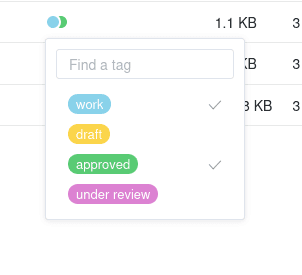
Custom file properties
Give a library fields of your own, such as owner, status, client or review date, and set them on files the way you would in a spreadsheet. Properties are per library and stay off until you switch them on for that library.
Views over the same library
Once a library has properties, open it as a table, a gallery, a kanban board or a set of cards, with filtering, sorting and grouping in each, and a statistics view over the numbers. The files do not move; only the way you are looking at them changes.
File tagging
Tag files and nest tags inside one another, so a broad tag pulls up everything filed under the narrower ones. Filter a view down to a tag in one click.
Version history
Every save is kept. Open an earlier version, compare it with the current one, download it or restore it. How long history is kept is set per library, by whoever owns it.
Trash, and what comes after it
Deleted files sit in the library trash until you clear it. A library deleted by mistake is restored whole, with its history, rather than file by file.
Documents in the browser
Write, review and present without leaving the library
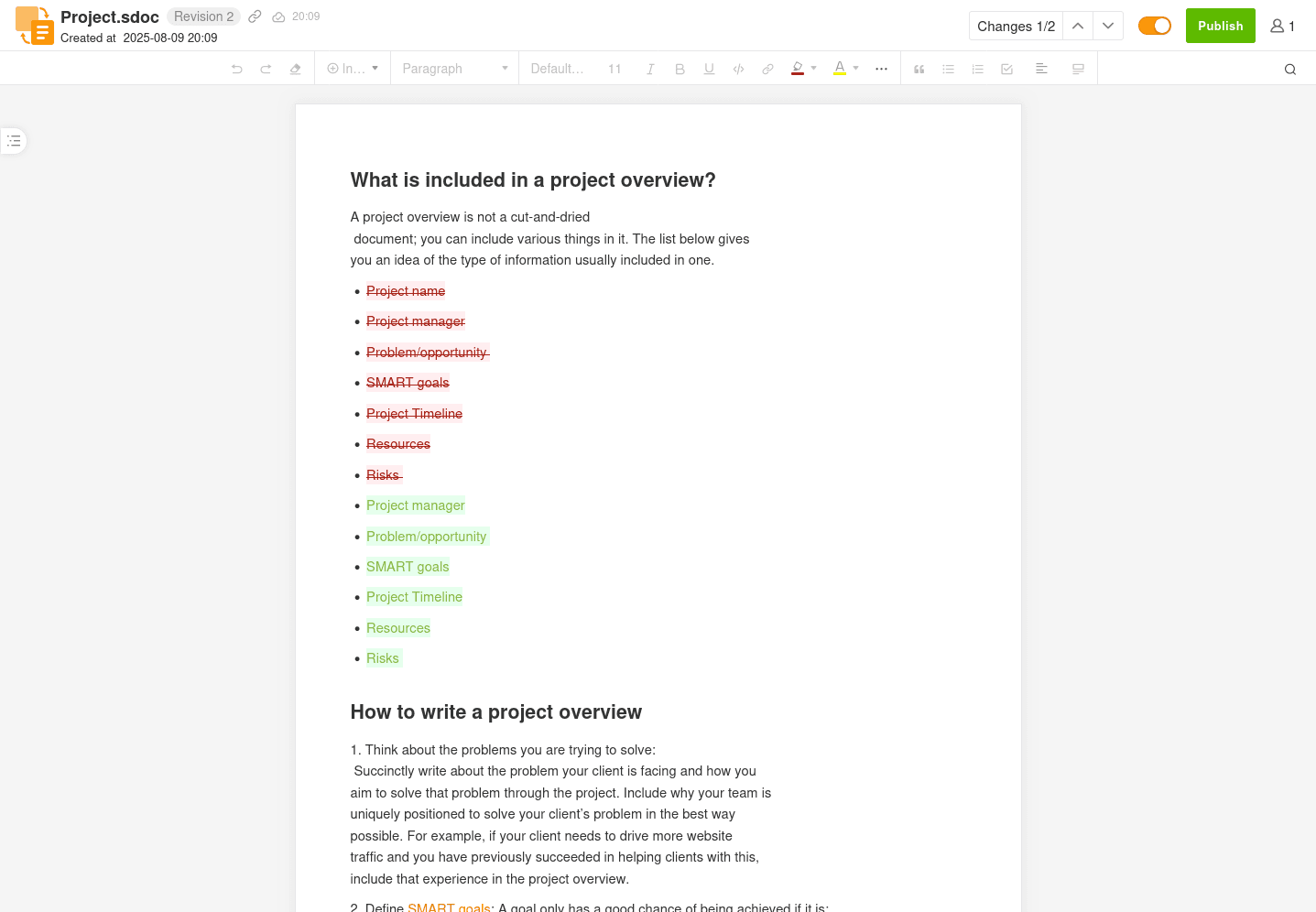
Real-time co-authoring
Write in the built in document editor with your colleagues in the same file at the same time, with a revision history and export to Markdown, HTML or PDF. The documents live in a library, so they carry its permissions.
Documents built from blocks
Every paragraph, image, table, code block, list and layout section is a block you can pick up and move, or turn into something else. Restructuring a long document means dragging a block, not cutting text out and hoping the formatting survives the paste.
Revision drafts, so review never touches the original
Take an isolated copy of a document, propose the changes in that, and leave the live version alone while people argue about them. Several drafts can run at once. Publishing one compares it with the source and walks you through any conflict, keeping either side or both, and the draft then replaces the document.
Whiteboards inside the document
Insert a whiteboard where the explanation goes, or link one that already exists. The sketch, the diagram and the rough thinking stay with the document that needs them, instead of in a separate tool nobody opens twice.
Present a document without building a deck
Any document turns into a scroll-through presentation. For a review or a walkthrough that is usually the whole job, and it cannot drift out of step with the document, because it is the document.
Comments on the file, and on the line
Leave a note on a file where the file is, rather than in a message thread somebody has to find later. Inside a document you can comment on a single phrase, table or diagram, and filter the panel down to what is still unresolved. Everyone with access to the library sees it.
Word, Excel and PowerPoint, edited in the browser
Open an Office file and work on it in place, formatting intact, saved straight back into the library. Nothing to download first and upload afterwards, and no second copy on somebody's desktop quietly drifting away from the one everyone else is using.
Sharing and permissions
Send a file out without giving away the folder
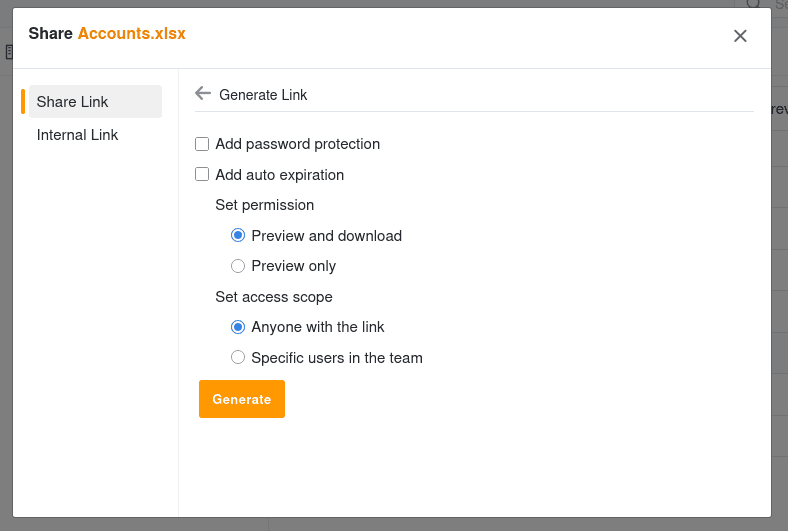
Secure share links
Send a link with a password, an expiry date, and view, download or edit rights. The rest of the library stays where it is.
Upload links
Give someone a link that only accepts files. They need no account, and they see nothing of what is already in the folder. Useful for collecting submissions, or for a file too large to email.
Permissions that follow the folder
Read and write or read only, given to a person or to a group, on a whole library or on a single folder inside it. Somebody who has one folder sees nothing else in the library.
Knowledge management
Write down how the work is done
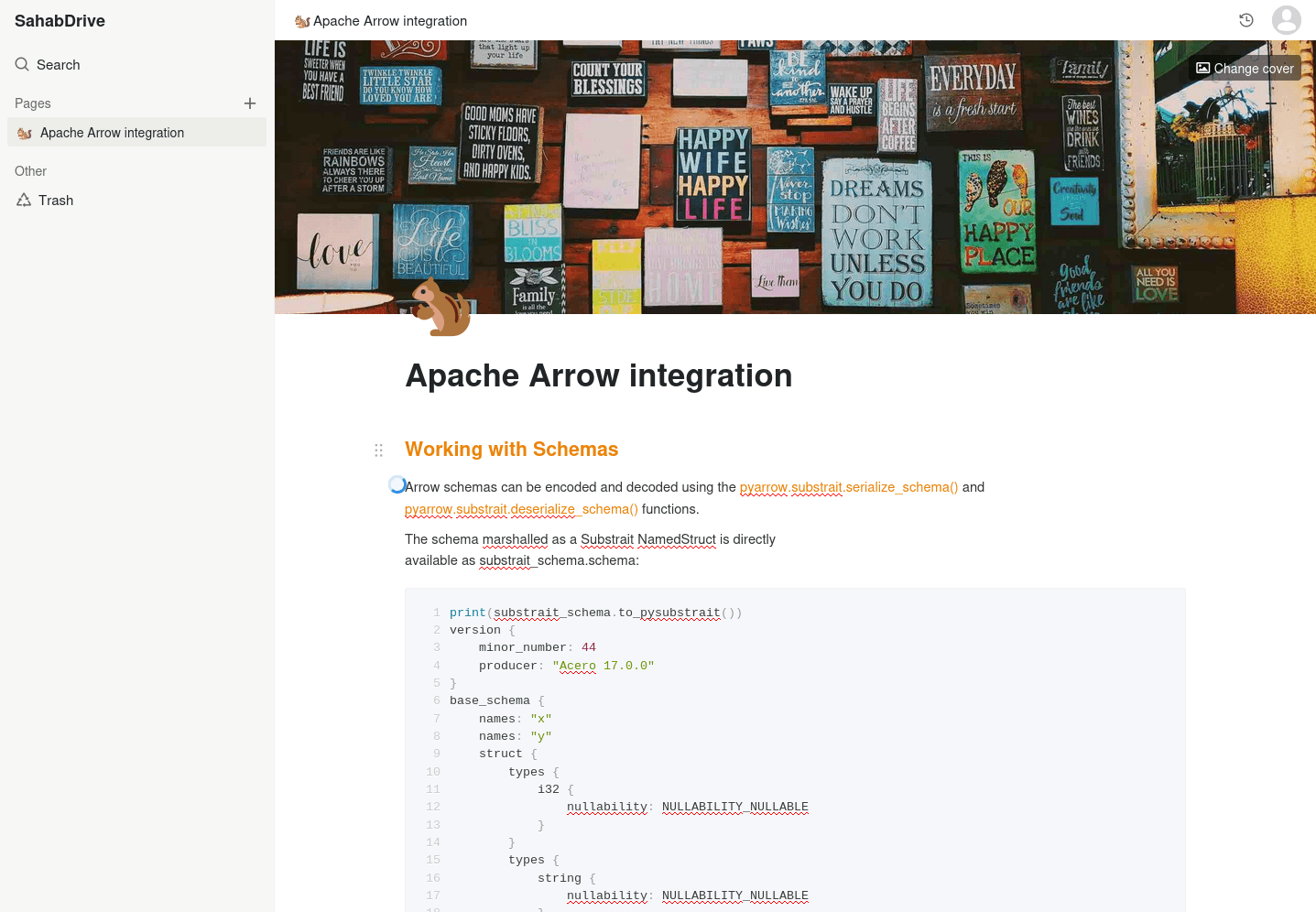
Team knowledge bases
Nested pages with rich content, sitting behind the same login and the same permissions as the files they describe. Publish one outward when it should be read beyond the team.
Markdown, as a first class file
Markdown files open in an editor rather than as plain text, render as you type, and export to HTML or PDF. Useful when the document belongs in the repository beside the work, not in a separate tool.
Access anywhere
Five platforms, and the browser
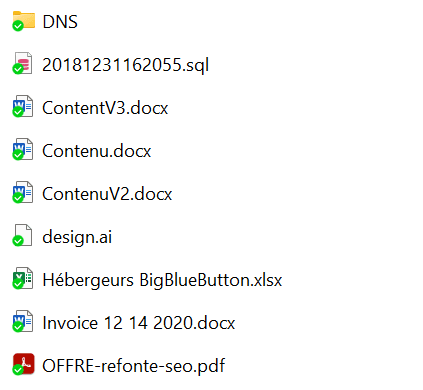
Sync on Windows, macOS and Linux
Choose which libraries a machine keeps and they stay in step with the server, including while you are offline, with the changes going up when you reconnect. The client asks the server what it already holds before it sends anything, so nothing is uploaded twice.
A virtual drive, when the disk is too small
The Drive client mounts everything as a drive letter or a folder without downloading it. A five terabyte library opens on a laptop with a quarter of that free, and files come down as you open them. The sync client is the other choice: use it where you want the files genuinely on the machine and available with no connection at all.
iOS and Android apps
Open, share and upload from a phone, and mark the folders that should stay readable with no signal.
Photos off the phone by themselves
Point the mobile app at a library once and new photos and videos upload on their own, over wifi only if you prefer. The phone stops being the only copy.
Web access from anywhere
Images, PDFs, video, text and code, Markdown and the collaborative documents all open in the browser, with thumbnails and a gallery for photo libraries. Word, Excel and PowerPoint files open there too, and can be edited in place.
Notifications as things happen
A notification server pushes changes to open sessions rather than waiting for a refresh, and every library keeps an activity trail of who changed what and when.
Security and control
What we can read, and what we cannot
Libraries, not one large drive
A library is a folder tree with its own members, its own permissions, its own history setting and its own sync switch. It is the unit everything else is set on, which is why access here does not become one shared folder nobody dares tidy.
Libraries only you can open
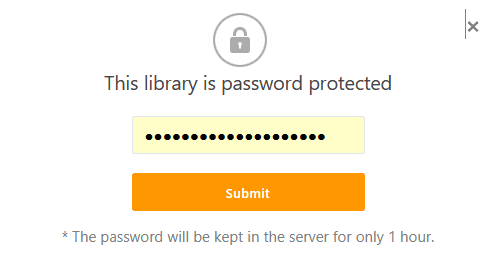
Mark a library encrypted and the desktop and mobile apps encrypt it before it leaves your machine, so the server holds blocks it has no key for. The catch: open that library in a browser and you hand the server the password so it can decrypt for you. Use it where that trade is worth making, and stay in the apps while you do.
That is the list.
No feature above is held back for a higher tier. Plans differ on storage, on how many people are on them, and on how quickly support answers.